UNIVERSE · PRODUCTIVITY
Productivity app UI patterns and flows
21 productivity app flows with their screens, the patterns behind them and the states to cover, at mobile and desktop. Your agent draws them on your design system.
21 Productivity flows
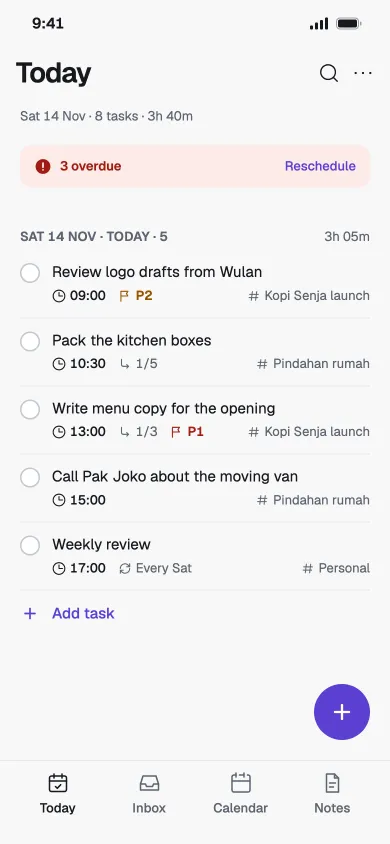 Today and inbox triageAny personal task list, a team member's "my work" home. 6 screens
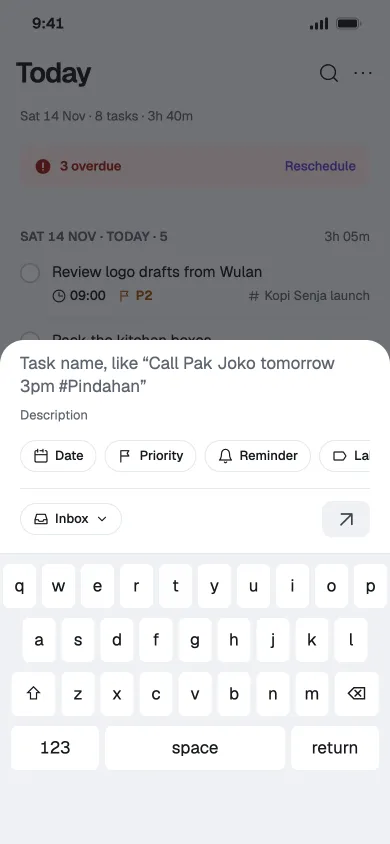 Quick add with natural datesAny task or reminder capture. 6 screens
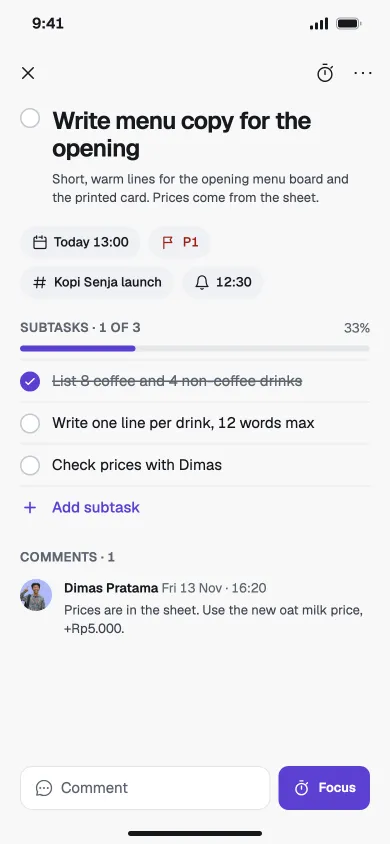 Task detail and subtasksAny task with more than a title. 7 screens
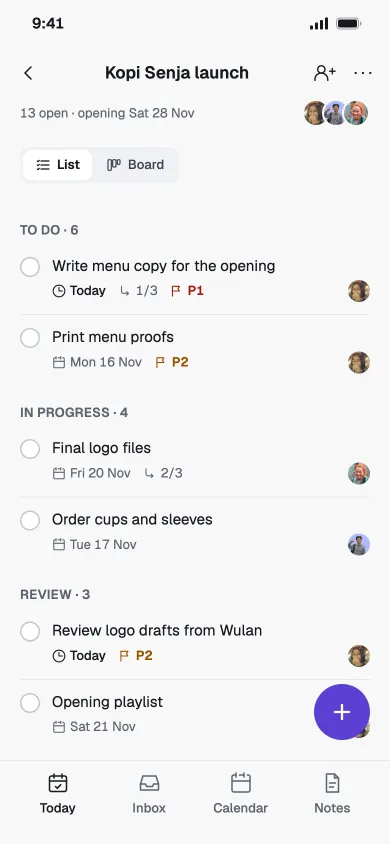 Project board and sharingA small team's shared project or a personal project with sections. 6 screens
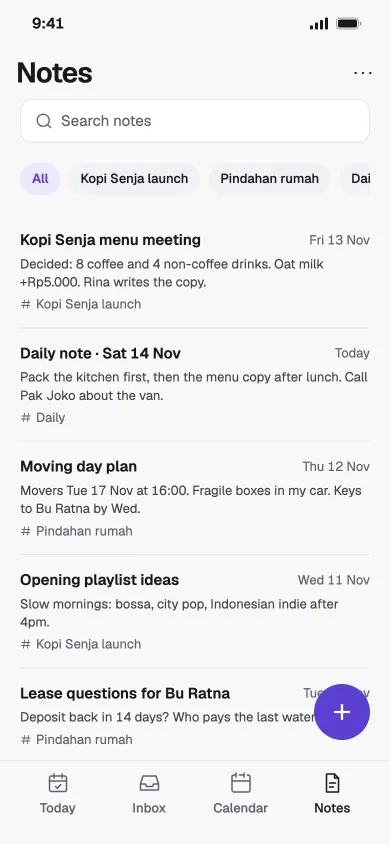 Notes editor with slash menuPersonal notes, meeting notes, a daily journal. 6 screens
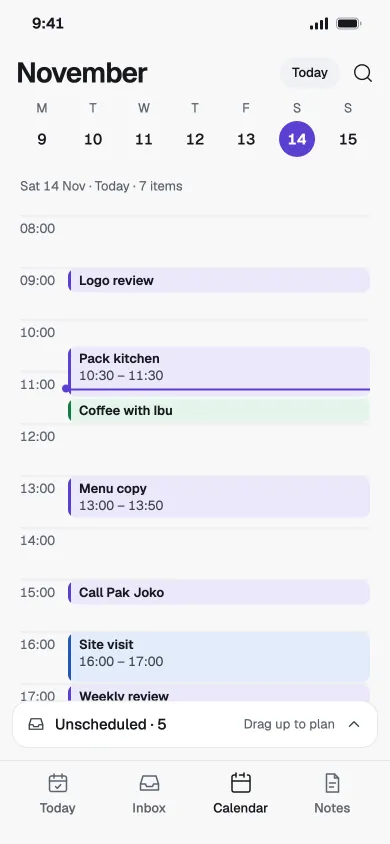 Calendar and time blockingPersonal planning, small-team meetings, focus time protection. 6 screens
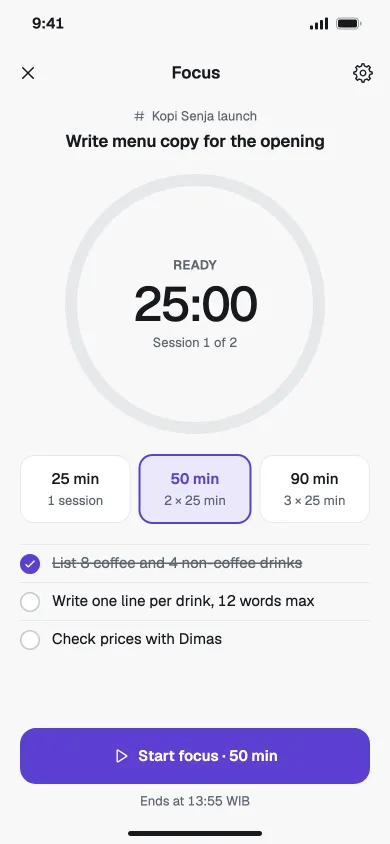 Focus timer sessionDeep work, study sessions, any task-bound timer. 6 screens
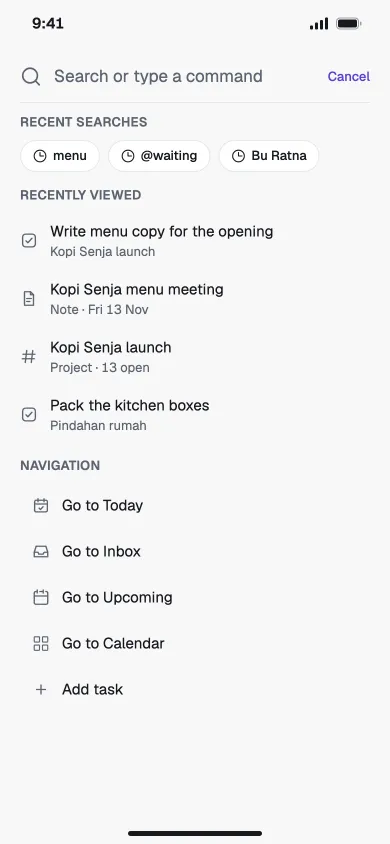 Search and command paletteA planner holds hundreds of tasks and notes and people jump between them by name or by keyboard. 5 screens
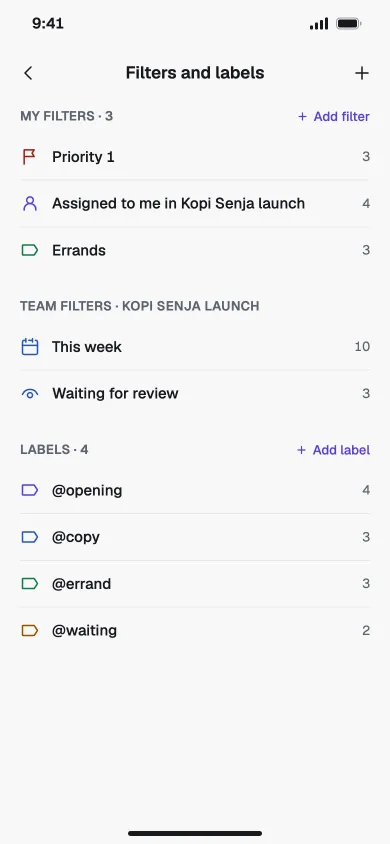 Filters labels and saved viewsFixed views are not enough and people need "Priority 1". 4 screens
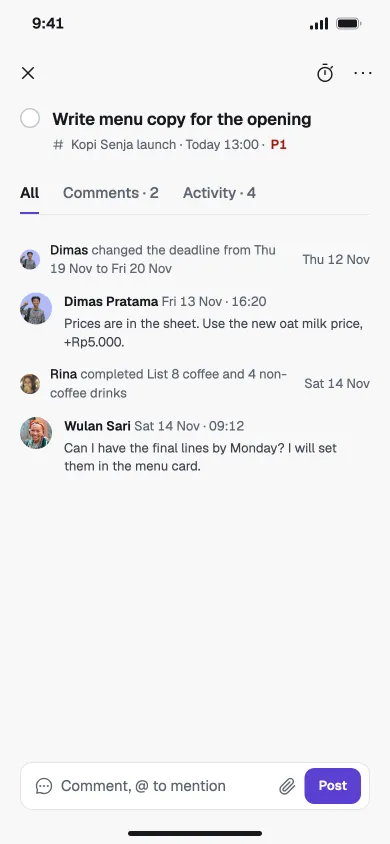 Comments mentions and activityA small team needs to talk about one task and see what changed on it. 6 screens
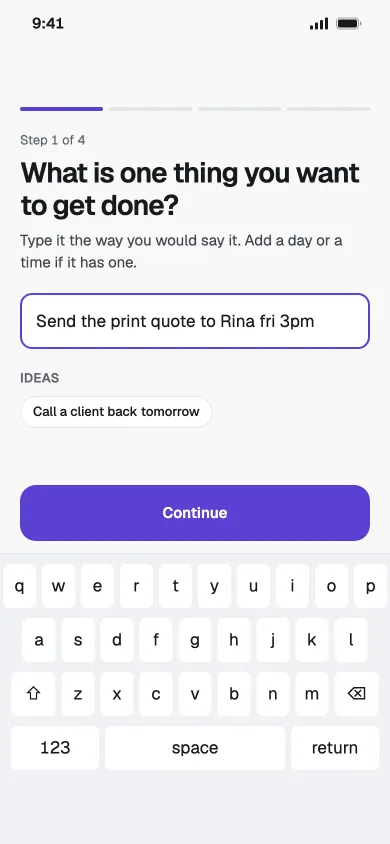 First run and templatesSomeone opens the planner for the first time and should learn Quick add by doing it. 4 screens
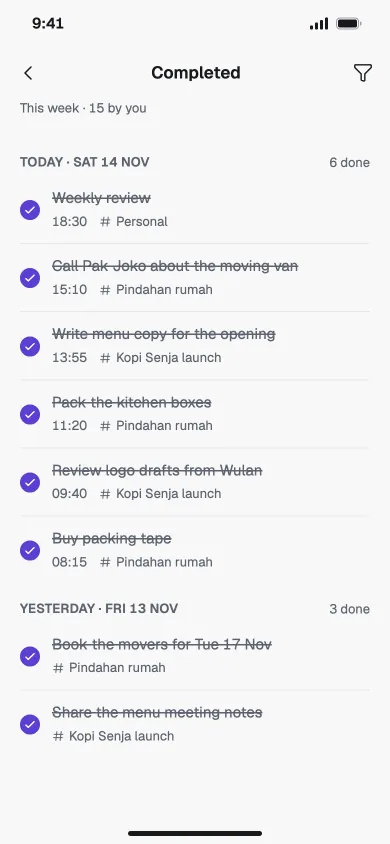 Completed and statsPeople review what they finished for a weekly review or a stand-up. 5 screens
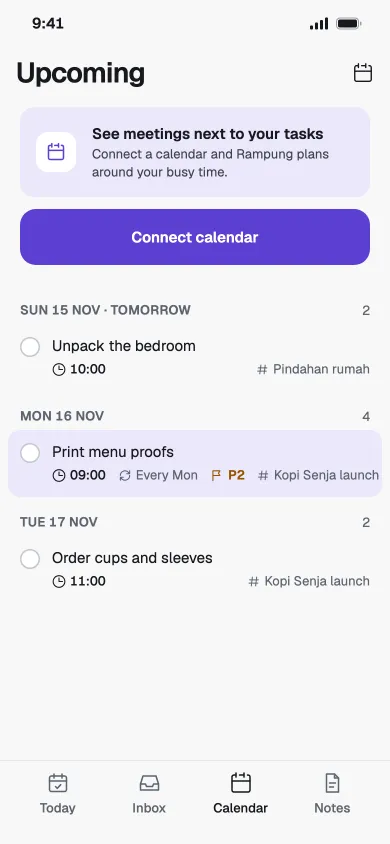 Connect a calendarTasks and time blocks should sit next to real meetings. 4 screens
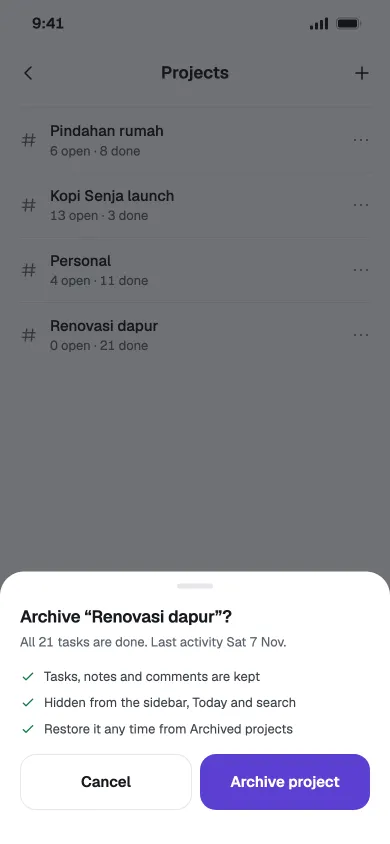 Archive and restore projectsFinished projects clutter the sidebar but their history matters. 4 screens
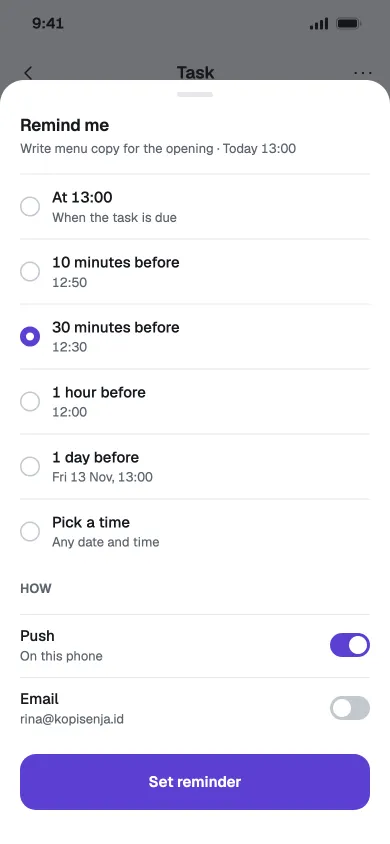 Reminders and notificationsA personal planner nudges at the right time: a reminder on one task. 4 screens
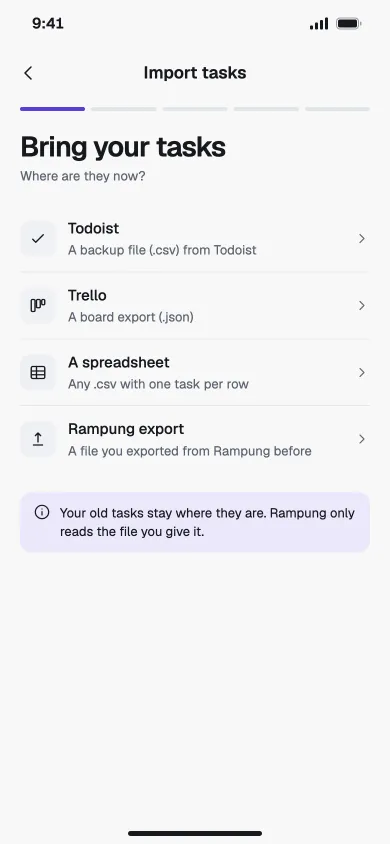 Import and exportA person brings tasks from another app or a spreadsheet and takes them out again: pick a source. 5 screens
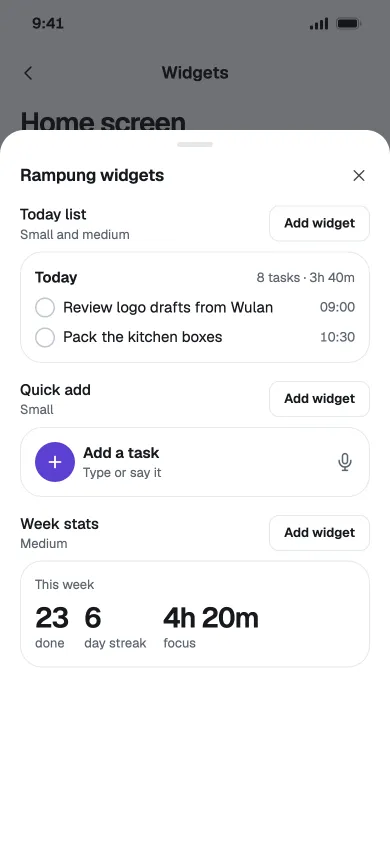 Widgets and lock screenA phone shows today's tasks without opening the app: a widget gallery. 4 screens
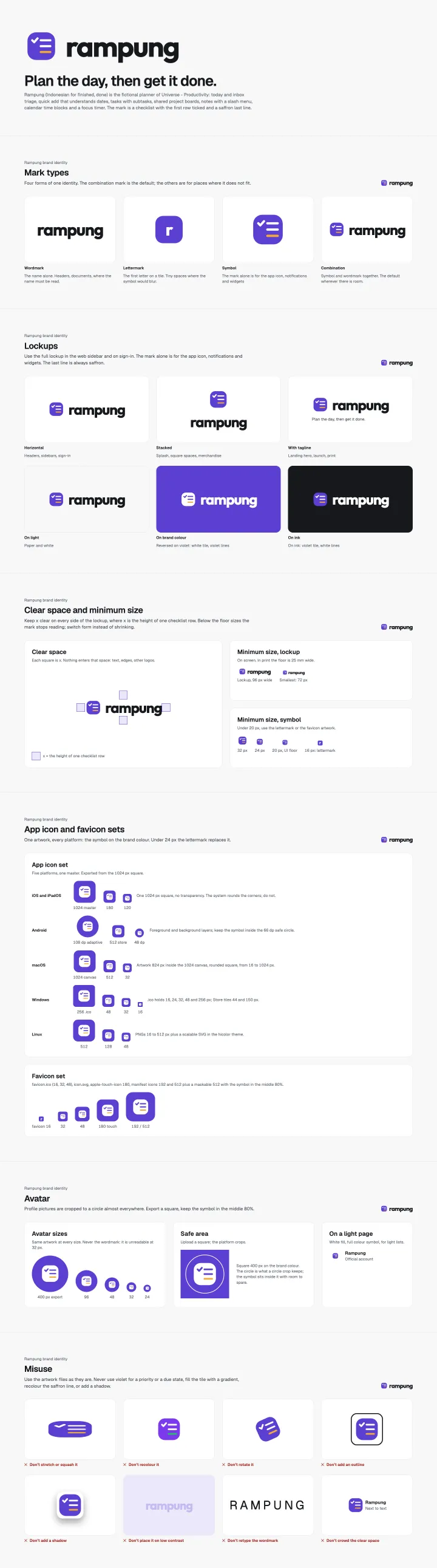 Brand identityA new app or company needs a logo system a team can use: the forms of the mark. 1 screens
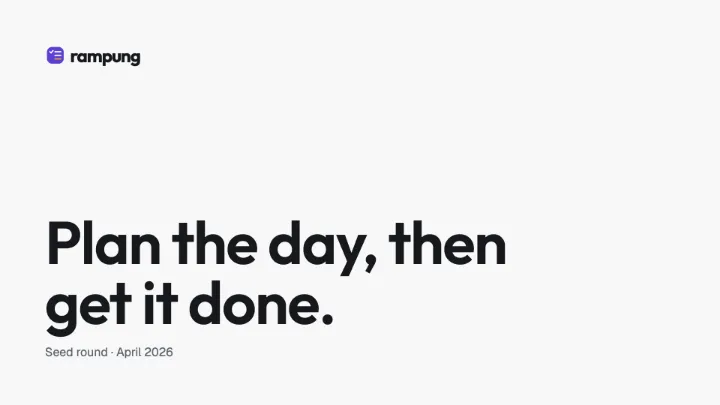 Pitch deckA founder raises a round or applies to an accelerator and needs a short deck an investor can read without a voice-over: one idea per slide. 7 screens
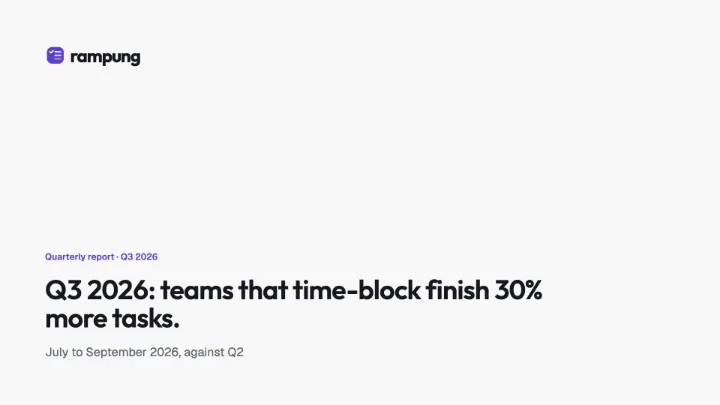 Report deckA quarterly or monthly update for investors. 2 screens
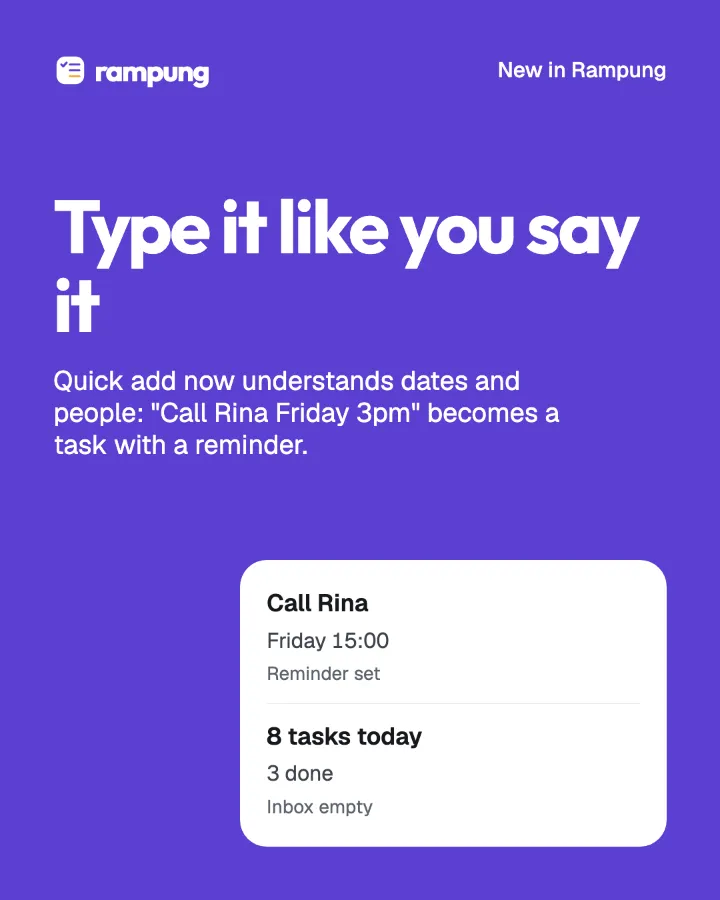 Launch campaignA product launches one feature and has to say it everywhere at once: a feed post. 5 screens
Questions
- Which productivity flows are in Universe?
- 21 flows: Today and inbox triage, Quick add with natural dates, Task detail and subtasks, Project board and sharing, Notes editor with slash menu, Calendar and time blocking, Focus timer session, Search and command palette, Filters labels and saved views, Comments mentions and activity, First run and templates, Completed and stats, Connect a calendar, Archive and restore projects, Reminders and notifications, Import and export, Widgets and lock screen, Brand identity, Pitch deck, Report deck, Launch campaign. Each one lists its screens in order, the patterns behind them and the states to cover.
- Whose brand are these screens?
- Rampung, a made-up Indonesian planner for one person or a small team: today and inbox, quick add that understands dates, tasks with subtasks, shared project boards, notes with a slash menu, calendar time blocks and a focus timer. Patterns for personal and small-team productivity. Each flow is Wonderblok's own best-practice version, not a copy of any app. Your agent redraws the flows on your own brand.
- How does my agent use these flows?
- Connect Claude Code, Codex or Claude Desktop to Wonderblok over MCP. The agent calls use_pattern for a flow, reads its screens, rules and states, and draws them in your file on your tokens.