PRODUCTIVITY FLOW
Import and export app flow
A productivity flow in 5 screens, from choose a source to imported and export. Start your app from it, and your agent draws it on your own design system.
- 5 screens
- 3 patterns
- Mobile and desktop
- Brand: Rampung (made up)
The screens, in order
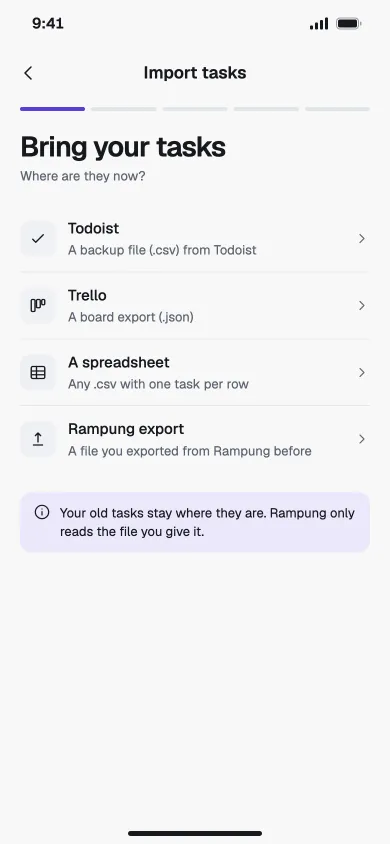
- Choose a source
- Upload your filePro
- Match the columnsPro
- Check before importingPro
- Imported and exportPro
See all 5 screens, at mobile and desktop.Pro opens the whole flow in your Universe, with the prompt and code for each screen.
Upgrade to ProAlready Pro? Open in UniverseWhen to use it
USE WHEN
A person brings tasks from another app or a spreadsheet and takes them out again: pick a source, upload, match columns, check the problems, import, then history with Undo and an export link.
AVOID WHEN
Team or workspace data export for admins (use Platform › Export data) or importing contacts (use CRM › Import contacts).
Patterns and why they work
3 decisions this flow makes, and the clarity each one buys.
Columns guessed, you confirm
Each column in the file points to one Rampung field
Problems before, not after
2 rows need a look, each with the reason and what will happen
Undo and a way out
History says what was added and until when it can be undone
Each pattern also has its psychology, the intuition behind it and what it rules out, plus layout notes for mobile and desktop.
Open in UniverseStates to cover
The screens people forget until a user hits them.
- Source chosen
- File uploaded
- File over 10 MB
- Columns matched
- Date format
- 2 rows with problems
- 140 tasks ready
- Imported
- Undo for 7 days
- Export ready by email link
- Source names
- Counts and file sizes are invented placeholders
Pairs with
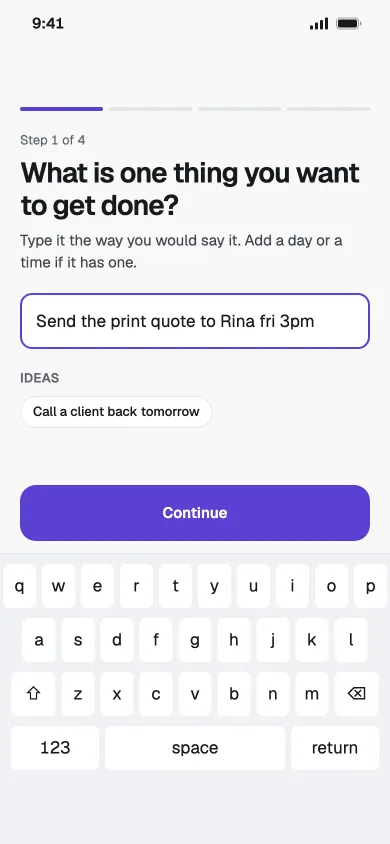
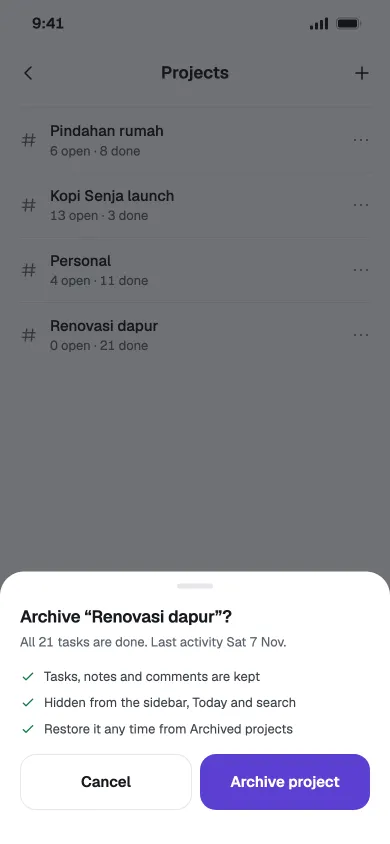
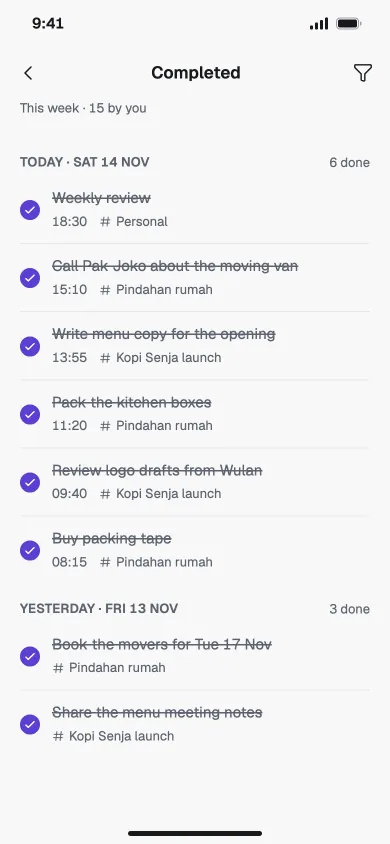
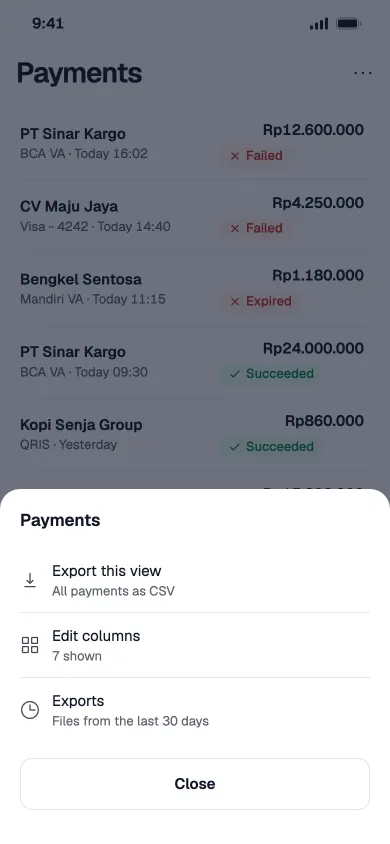
The flows this one hands off to or comes back from.
More Productivity flows
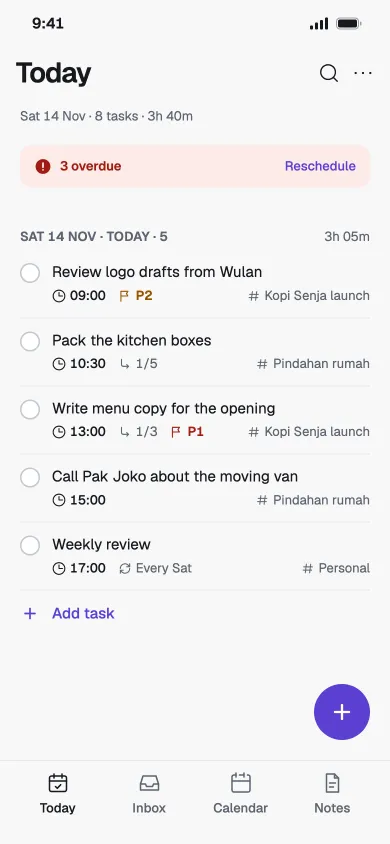
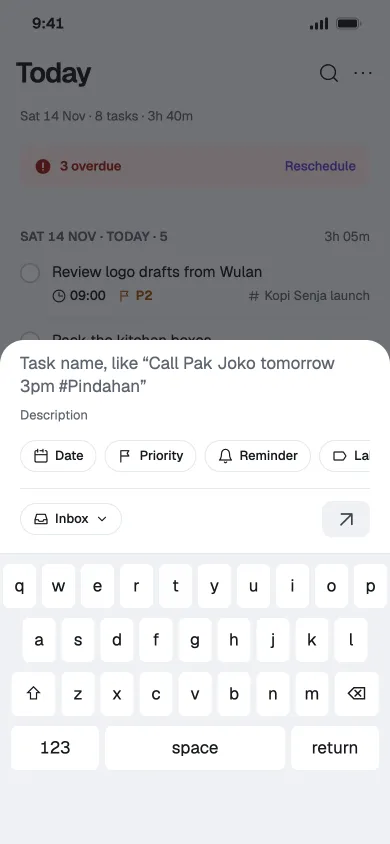
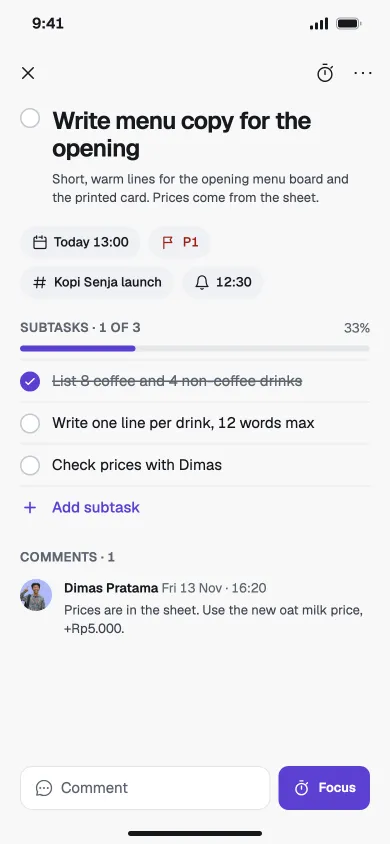
Drawn for the same brand, so they fit together.
Questions
- When should I use a import and export flow?
- A person brings tasks from another app or a spreadsheet and takes them out again: pick a source, upload, match columns, check the problems, import, then history with Undo and an export link. Use another pattern for team or workspace data export for admins (use Platform › Export data) or importing contacts (use CRM › Import contacts).
- Which screens does it need?
- This pattern uses 5: Choose a source, Upload your file, Match the columns, Check before importing and Imported and export. Plan for these states too: source chosen, file uploaded, file over 10 mb, columns matched.
- Is Rampung a real app?
- No. Rampung is a made-up Indonesian planner for one person or a small team: today and inbox, quick add that understands dates, tasks with subtasks, shared project boards, notes with a slash menu, calendar time blocks and a focus timer, so the screens show the pattern without copying anyone's brand. Your agent redraws the flow on your own tokens and components.
- How does my agent use this flow?
- Connect Claude Code, Codex or Claude Desktop to Wonderblok over MCP. The agent calls use_pattern for this flow, reads its screens, rules and states, and draws them in your file.
- Is it free?
- Browsing Universe is free. Full pattern notes and use with your agent are part of Pro, and the Free plan opens a few flows in full each month.