PRODUCTIVITY FLOW
Widgets and lock screen app flow
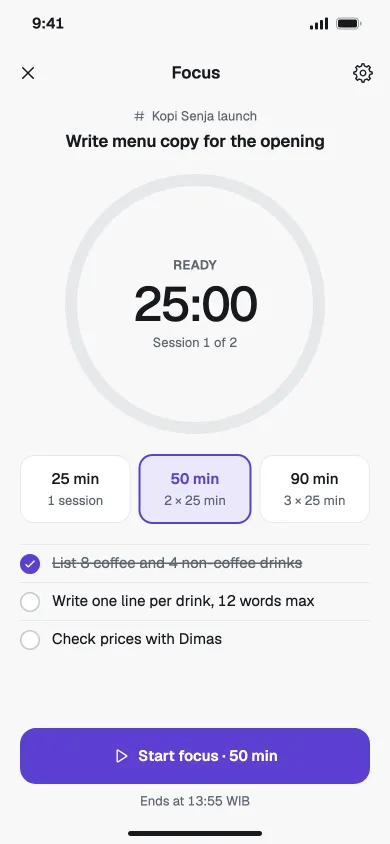
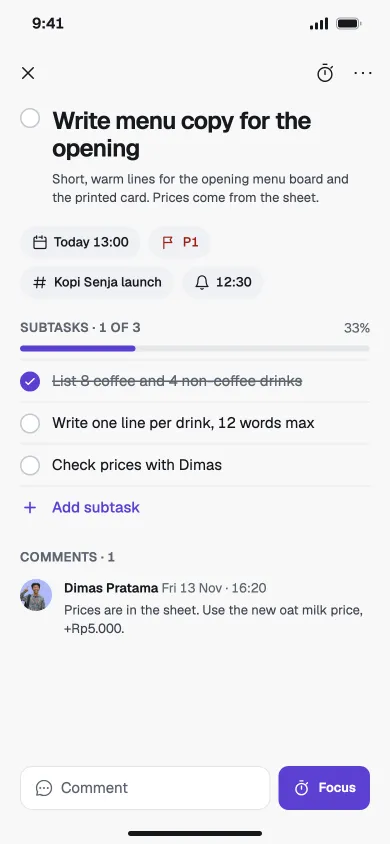
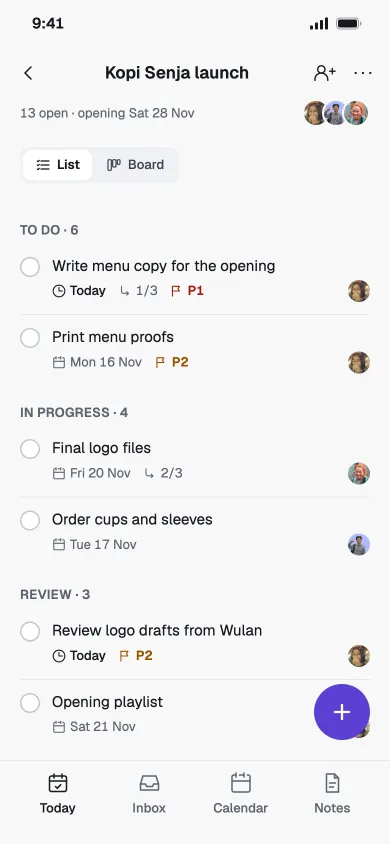
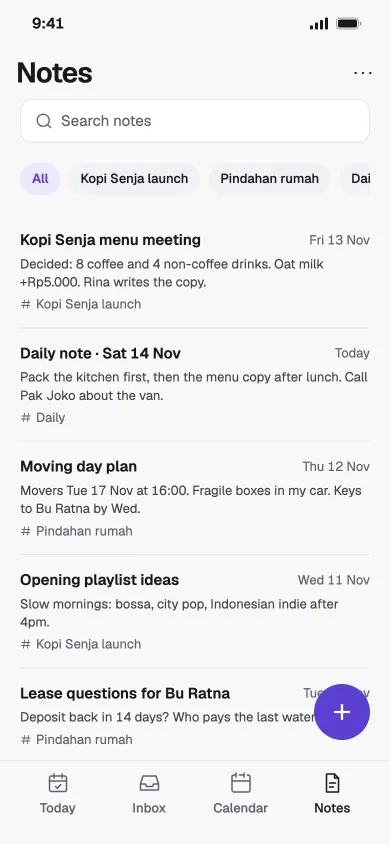
A productivity flow in 4 screens, from add a widget to empty widget. Start your app from it, and your agent draws it on your own design system.
- 4 screens
- 3 patterns
- Mobile and desktop
- Brand: Rampung (made up)
The screens, in order
- Add a widget
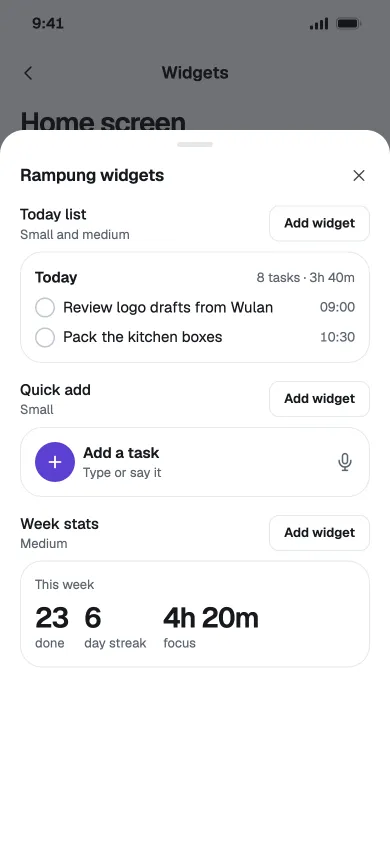
- Today widgetPro
- Lock screen widgetsPro
- Empty widgetPro
See all 4 screens, at mobile and desktop.Pro opens the whole flow in your Universe, with the prompt and code for each screen.
Upgrade to ProAlready Pro? Open in UniverseWhen to use it
USE WHEN
A phone shows today's tasks without opening the app: a widget gallery, a Today list on the home screen, quick add and stats on the lock screen, and an all-done state.
AVOID WHEN
Notifications (use Productivity › Reminders and notifications) or the Today screen inside the app (use Productivity › Today and inbox triage).
Patterns and why they work
3 decisions this flow makes, and the clarity each one buys.
Show what is due now
Three tasks with their times in a card
Quick add on the lock screen
A plus ring beside the task count and the timer
A calm empty widget
All done for today with 8 of 8 and a tomorrow count
Each pattern also has its psychology, the intuition behind it and what it rules out, plus layout notes for mobile and desktop.
Open in UniverseStates to cover
The screens people forget until a user hits them.
- Gallery open
- Today widget small and medium
- Quick add
- Week stats
- Lock screen
- Nothing due (all done)
- Rest day
- Signed out
- The lock screen and stats are drawn from the references
- The 1440 pinned view and the numbers on the stats widget rest on my own judgment
Pairs with
The flows this one hands off to or comes back from.
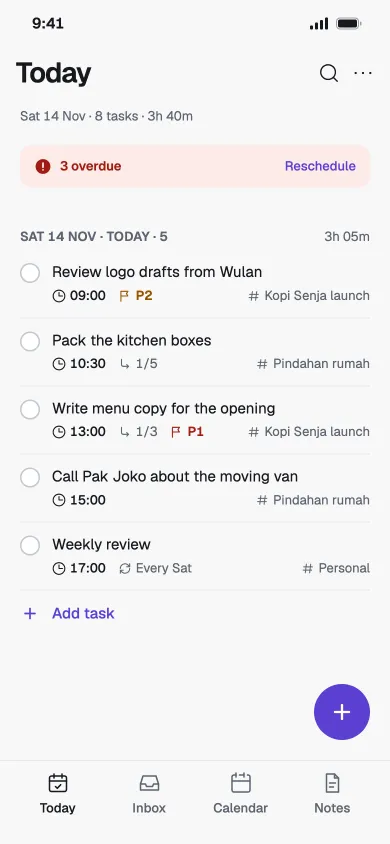
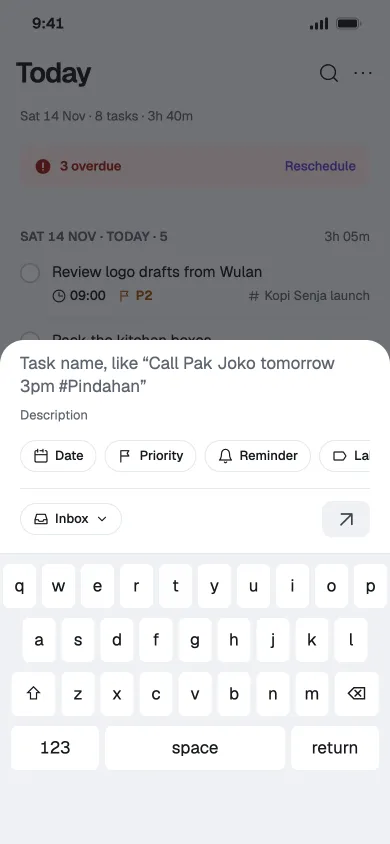
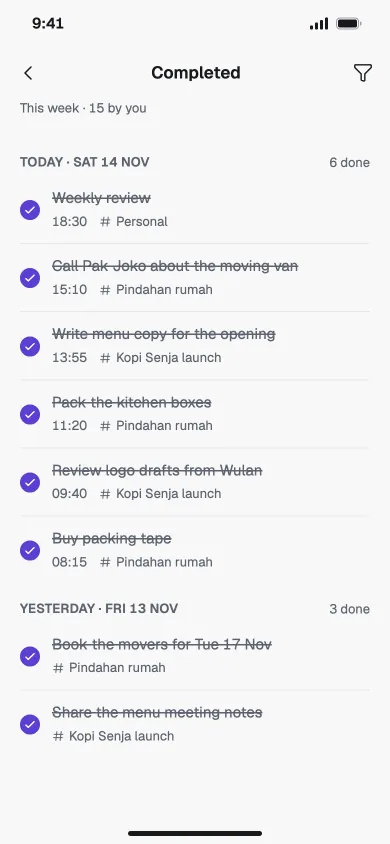
More Productivity flows
Drawn for the same brand, so they fit together.
Questions
- When should I use a widgets and lock screen flow?
- A phone shows today's tasks without opening the app: a widget gallery, a Today list on the home screen, quick add and stats on the lock screen, and an all-done state. Use another pattern for notifications (use Productivity › Reminders and notifications) or the Today screen inside the app (use Productivity › Today and inbox triage).
- Which screens does it need?
- This pattern uses 4: Add a widget, Today widget, Lock screen widgets and Empty widget. Plan for these states too: gallery open, today widget small and medium, quick add, week stats.
- Is Rampung a real app?
- No. Rampung is a made-up Indonesian planner for one person or a small team: today and inbox, quick add that understands dates, tasks with subtasks, shared project boards, notes with a slash menu, calendar time blocks and a focus timer, so the screens show the pattern without copying anyone's brand. Your agent redraws the flow on your own tokens and components.
- How does my agent use this flow?
- Connect Claude Code, Codex or Claude Desktop to Wonderblok over MCP. The agent calls use_pattern for this flow, reads its screens, rules and states, and draws them in your file.
- Is it free?
- Browsing Universe is free. Full pattern notes and use with your agent are part of Pro, and the Free plan opens a few flows in full each month.