AI FLOW
Prompt composer and attachments app flow
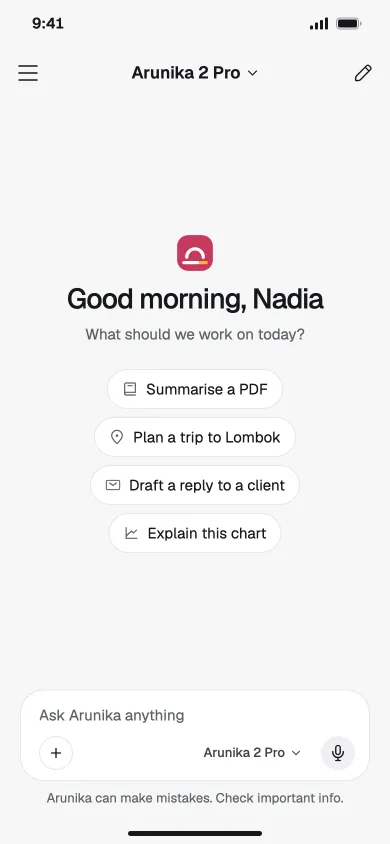
A ai flow in 5 screens, from composer idle to file too large and upload failed. Start your app from it, and your agent draws it on your own design system.
- 5 screens
- 6 patterns
- Mobile and desktop
- Brand: Arunika (made up)
The screens, in order
- Composer idle
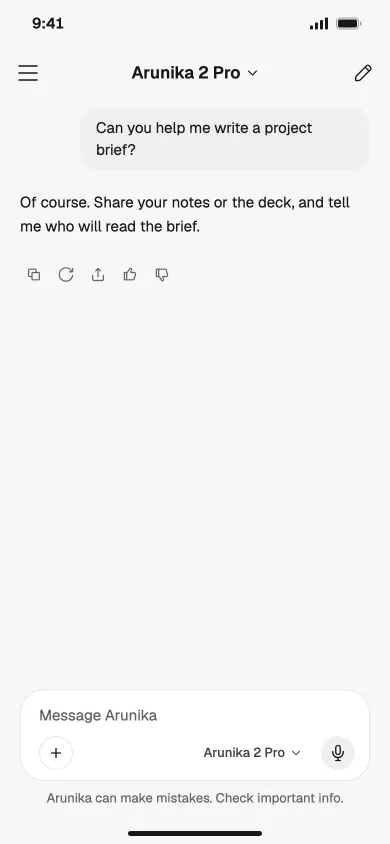
- Add menu openPro
- Attachments uploadingPro
- Model and mode selectedPro
- File too large and upload failedPro
See all 5 screens, at mobile and desktop.Pro opens the whole flow in your Universe, with the prompt and code for each screen.
Upgrade to ProAlready Pro? Open in UniverseWhen to use it
USE WHEN
Every assistant input, media generators (with parameter chips), agent task entry.
AVOID WHEN
The product has a single fixed action (show one button, not a composer) or the input is structured data (use a form with fields).
Patterns and why they work
6 decisions this flow makes, and the clarity each one buys.
Send button that morphs from voice
One slot for the primary action
Tools listed with one-line purpose
What each mode does
Active mode as a removable chip
Current mode is visible at the point of sending
Attachment tray with per-file cards
Exactly what will be sent
Inline @ chips with upload percent
File is part of the sentence
Quota and locks in the menu
Limits are known before use
Each pattern also has its psychology, the intuition behind it and what it rules out, plus layout notes for mobile and desktop.
Open in UniverseStates to cover
The screens people forget until a user hits them.
- Drawn: empty idle
- + menu open
- Mode chip active
- Model menu open with locked option
- Attachment uploading
- Unsupported type (Not supported, use PDF)
- File too large with the limit and a way out
- Upload failed with Retry
- Send disabled while files have problems
- Listed
- Not drawn: typing (send enabled)
- Tools menu open
- Attachment ready
- Multiple attachments
- Upload quota reached
- Voice recording
Pairs with
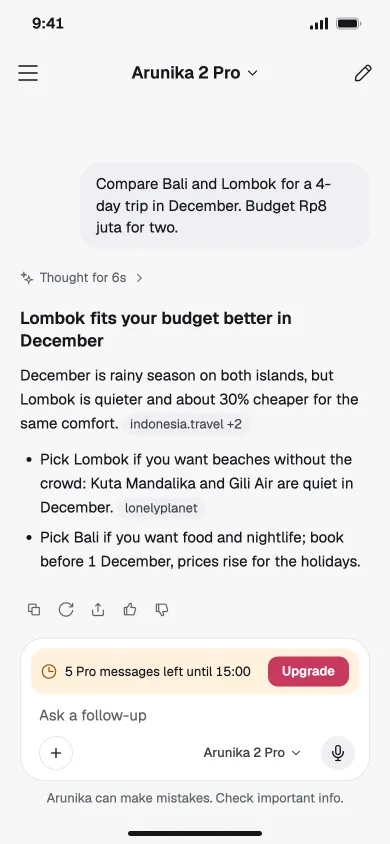
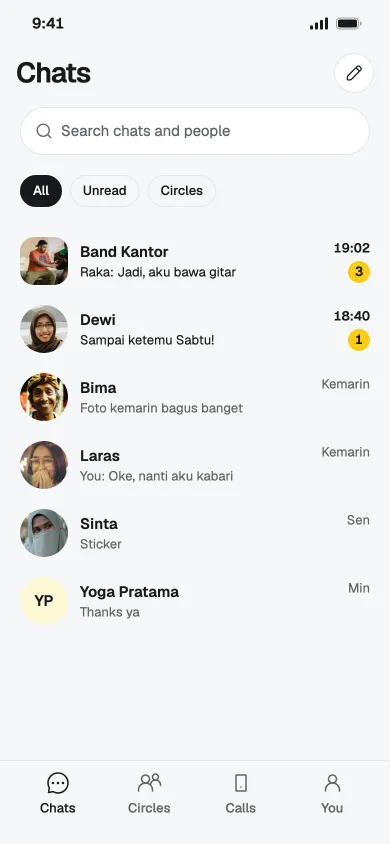
The flows this one hands off to or comes back from.
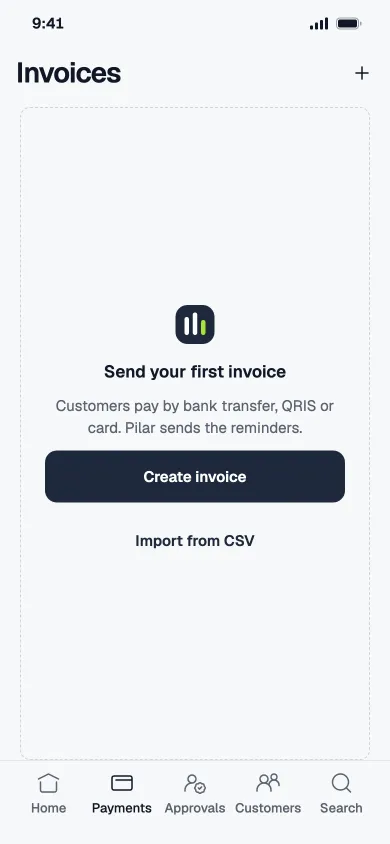
More AI flows
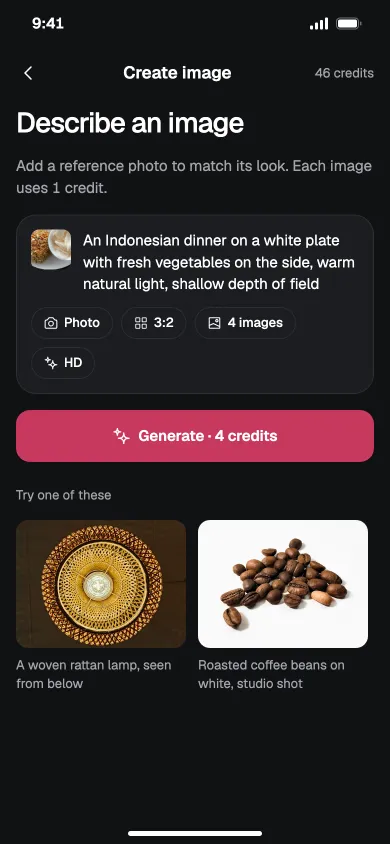
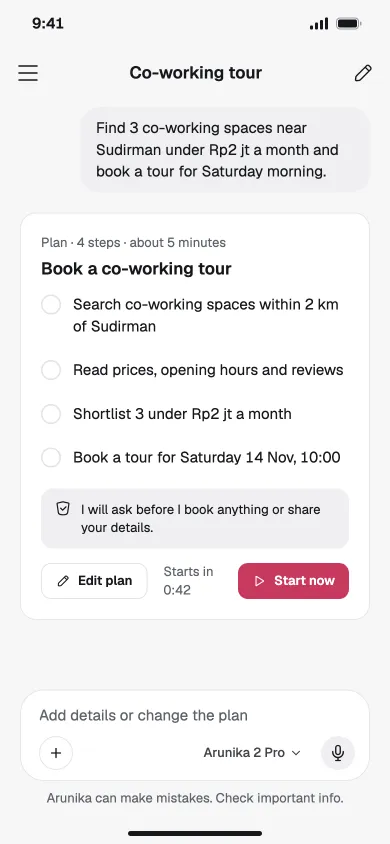
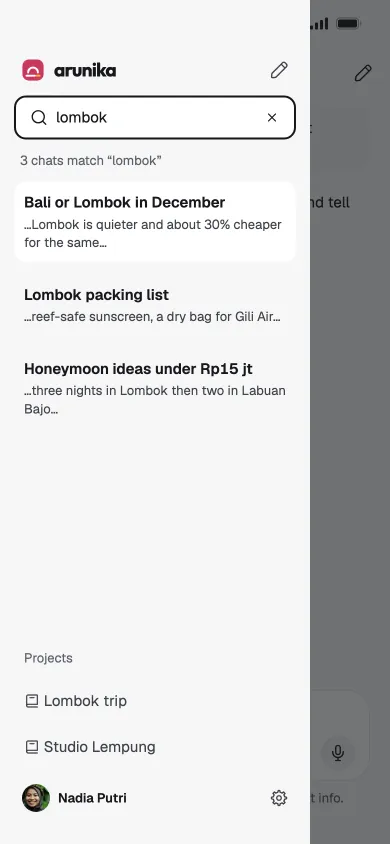
Drawn for the same brand, so they fit together.
Questions
- When should I use a prompt composer and attachments flow?
- Every assistant input, media generators (with parameter chips), agent task entry. Use another pattern for the product has a single fixed action (show one button, not a composer) or the input is structured data (use a form with fields).
- Which screens does it need?
- This pattern uses 5: Composer idle, Add menu open, Attachments uploading, Model and mode selected and File too large and upload failed. Plan for these states too: drawn: empty idle, + menu open, mode chip active, model menu open with locked option.
- Is Arunika a real app?
- No. Arunika is a made-up AI assistant: chat with sources, attachments, image generation, agent tasks, projects, memory and plans, so the screens show the pattern without copying anyone's brand. Your agent redraws the flow on your own tokens and components.
- How does my agent use this flow?
- Connect Claude Code, Codex or Claude Desktop to Wonderblok over MCP. The agent calls use_pattern for this flow, reads its screens, rules and states, and draws them in your file.
- Is it free?
- Browsing Universe is free. Full pattern notes and use with your agent are part of Pro, and the Free plan opens a few flows in full each month.