MISC FLOW
Tooltips app flow
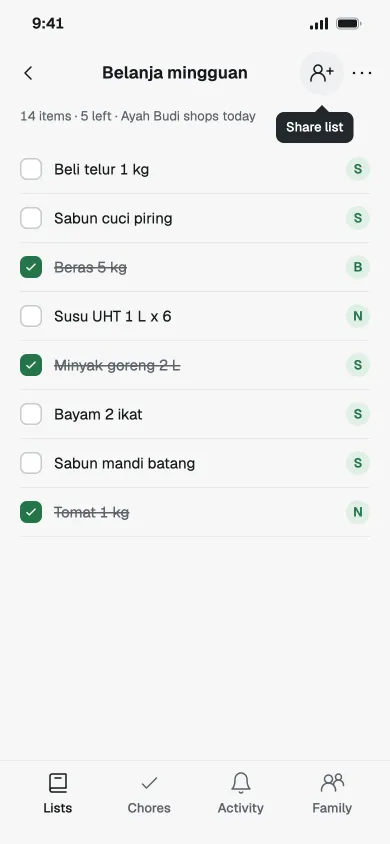
A misc flow in 4 screens, from icon button on hover to touch and keyboard. Start your app from it, and your agent draws it on your own design system.
- 4 screens
- 3 patterns
- Mobile and desktop
- Brand: Rapi (made up)
The screens, in order
- Icon button on hover
- Info tooltipPro
- CoachmarkPro
- Touch and keyboardPro
See all 4 screens, at mobile and desktop.Pro opens the whole flow in your Universe, with the prompt and code for each screen.
Upgrade to ProAlready Pro? Open in UniverseWhen to use it
USE WHEN
Naming an icon-only button, explaining one term next to it, or a short tour of a new feature, one tip at a time.
AVOID WHEN
Anything needed to finish the task, like password rules (show it on the page), and long help (use Misc › Help center and contact support).
Patterns and why they work
3 decisions this flow makes, and the clarity each one buys.
Hover and focus both open it, Esc closes it: keyboard users get the same names, and a tooltip that cannot be dismissed or hovered fails people who zoom in
On touch, label the icon instead: Share, Sort, Print and More under the icons cost a line and save every guess. A tooltip nobody can hover is a label nobody sees
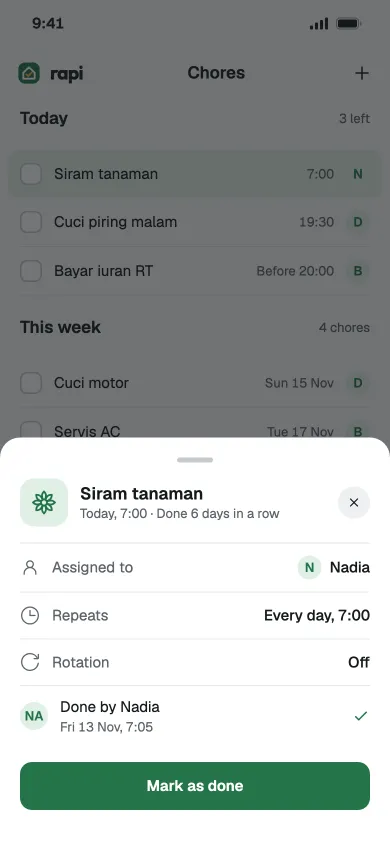
One tip at a time with a way out: the tour spots one chore, says what to do, shows the step and has Skip tour. A wall of tips at once is closed unread
Each pattern also has its psychology, the intuition behind it and what it rules out, plus layout notes for mobile and desktop.
Open in UniverseStates to cover
The screens people forget until a user hits them.
- Icon tooltip on hover (web) and long press (mobile)
- Keyboard focus with the shortcut
- Info tooltip on hover
- Focus and tap
- Coachmark step with Skip and Next
- Labels instead of tooltips on touch
Pairs with
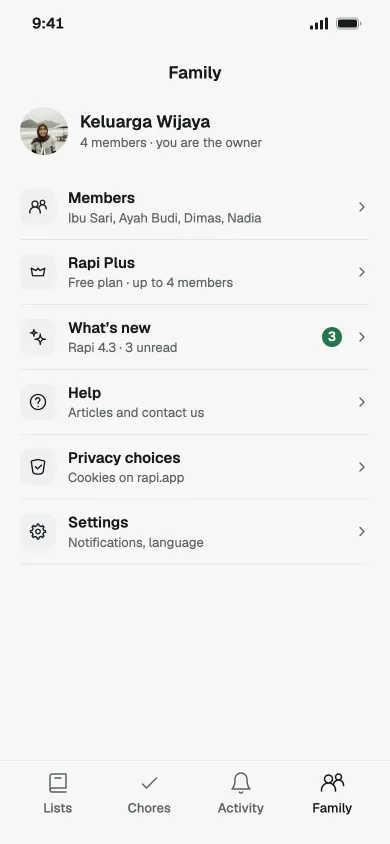
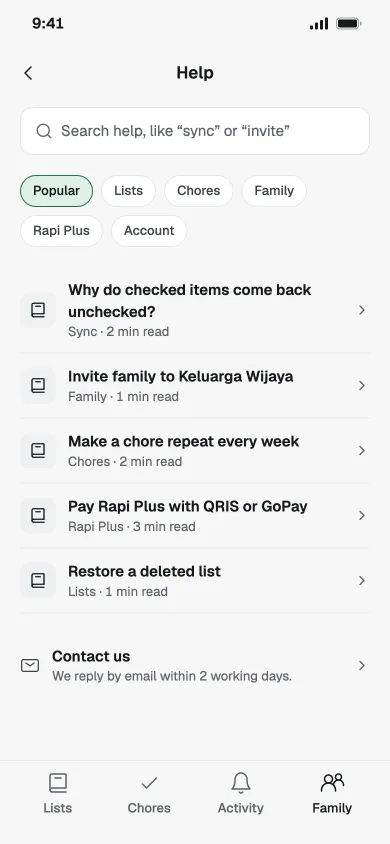
The flows this one hands off to or comes back from.
More Misc flows
Drawn for the same brand, so they fit together.
Questions
- When should I use a tooltips flow?
- Naming an icon-only button, explaining one term next to it, or a short tour of a new feature, one tip at a time. Use another pattern for anything needed to finish the task, like password rules (show it on the page), and long help (use Misc › Help center and contact support).
- Which screens does it need?
- This pattern uses 4: Icon button on hover, Info tooltip, Coachmark and Touch and keyboard. Plan for these states too: icon tooltip on hover (web) and long press (mobile), keyboard focus with the shortcut, info tooltip on hover, focus and tap.
- Is Rapi a real app?
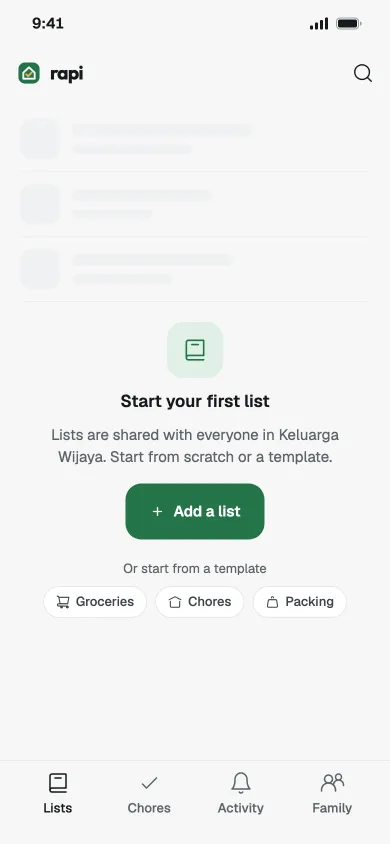
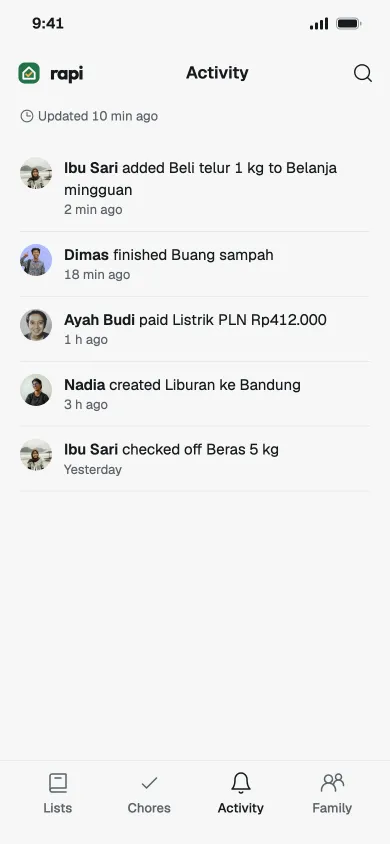
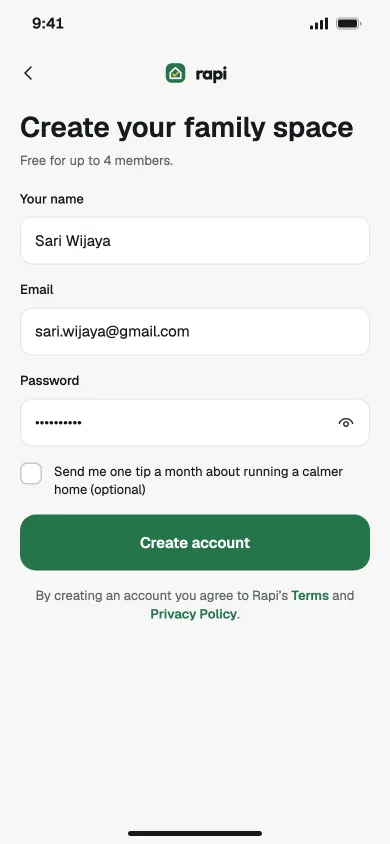
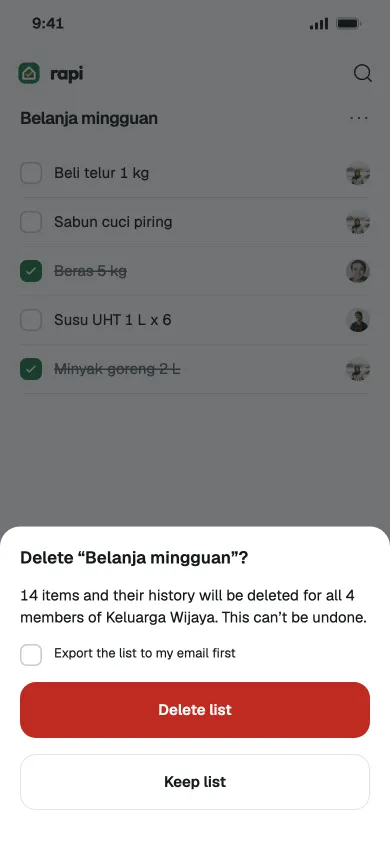
- No. Rapi is a made-up family lists and chores app: shared groceries, chores and reminders for one household, so the screens show the pattern without copying anyone's brand. Your agent redraws the flow on your own tokens and components.
- How does my agent use this flow?
- Connect Claude Code, Codex or Claude Desktop to Wonderblok over MCP. The agent calls use_pattern for this flow, reads its screens, rules and states, and draws them in your file.
- Is it free?
- Browsing Universe is free. Full pattern notes and use with your agent are part of Pro, and the Free plan opens a few flows in full each month.