Universe flow of the week: Account › Onboarding
The first Universe flow of the week: its five main screens, the patterns behind them and the states most onboarding forgets.
Arya Nugroho
Staff Editorial
This is the first Universe flow of the week: Account › Onboarding. It is the first-run path for a product that needs to tailor itself to a person or ask for permissions, and it takes 5 main screens, plus 2 more for the states people forget. Its own use-when note reads: first run of a consumer or SaaS product that benefits from tailoring or needs permissions.
Each week we will pick one flow from Universe and show what is inside it: the screens, the patterns behind them and the states to cover. Everything below is read from the flow itself.
The 5 screens
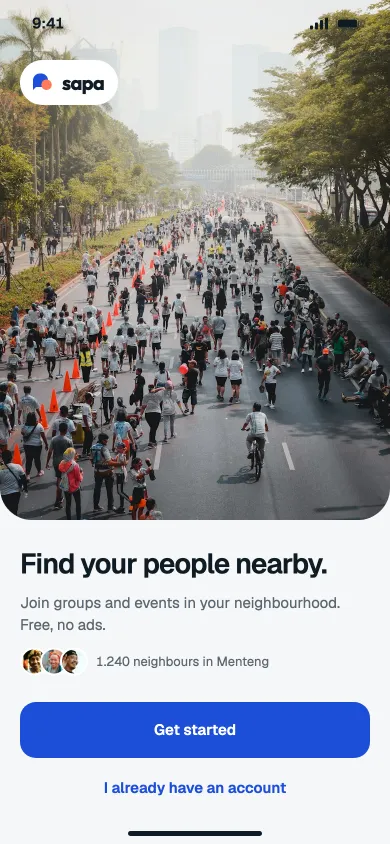
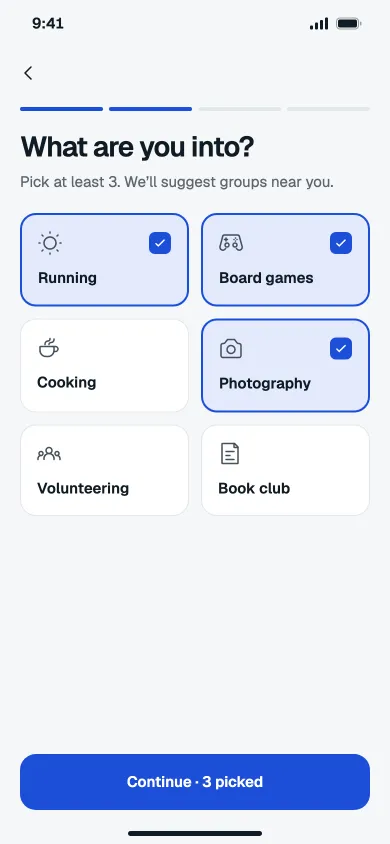
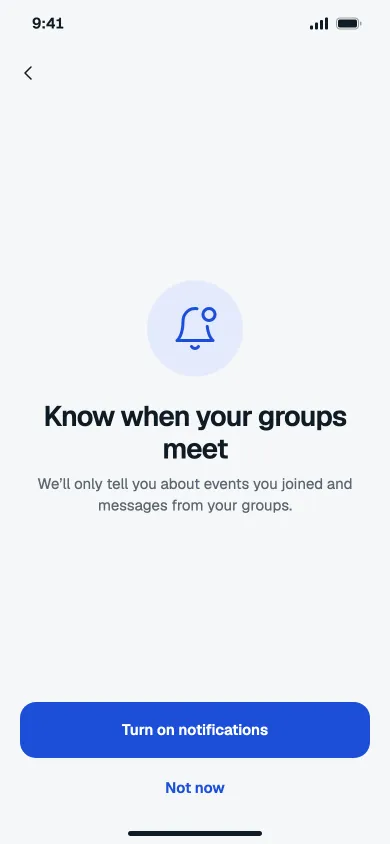
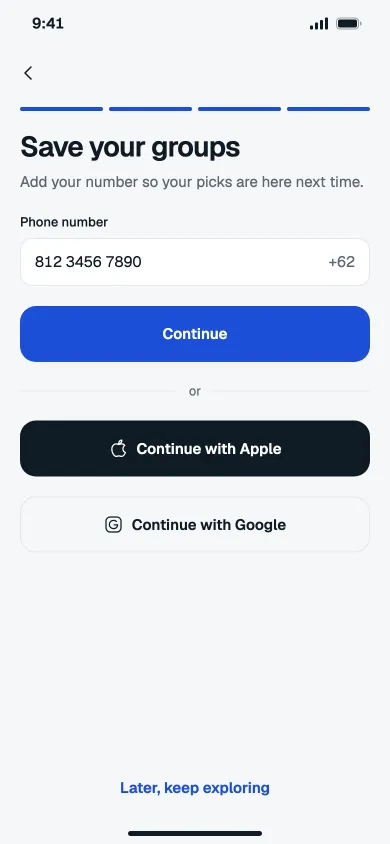
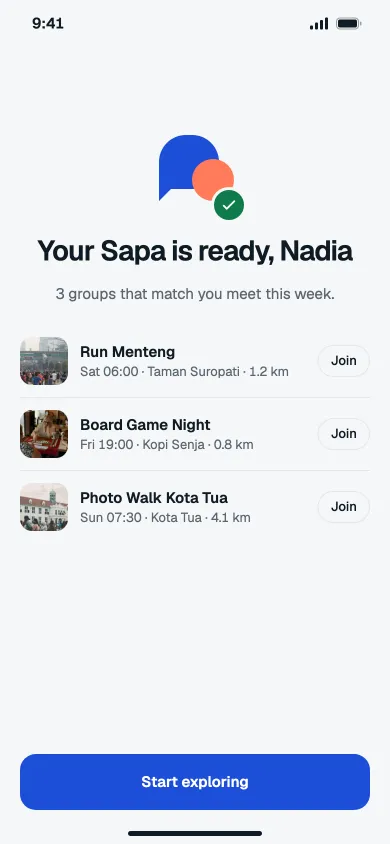
In order: Welcome, Interests, Notifications pre-permission, Save your progress, Ready. The last screen confirms that the answers were used. The set is drawn at mobile and desktop widths for a made-up brand, so you copy the decisions and not the look.
The patterns behind them
Universe lists 8 patterns for this flow. Each one has a reason, read through four lenses: clarity, psychology, what feels intuitive, and what avoids confusion. Here are four, with their first lens.
- One question per screen with progress bar. Clarity: one decision at a time.
- Value before account. Clarity: users see what they get first.
- Pre-permission screen before the OS dialog. Clarity: states the benefit in plain words.
- Option cards with icon and subtext. Clarity: each choice is self-explaining.
The rest are disabled primary until answered, personalized payoff screen, split marketing plus form layout on web, sandbox landing with activation banner.
One pattern in full
Take pre-permission screen before the os dialog. The flow gives all four lenses for it, which is what turns a screen into a decision:
- Clarity: states the benefit in plain words.
- Psychology: soft ask avoids a hard "Don't allow".
- Intuitive: Not now is always present.
- No confusion: OS dialog never appears unexplained.
The states to cover
The flow lists these states, and each is a screen your agent will not draw unless it is asked: empty (no answers yet, CTA disabled), loading (saving answers, building plan), error (network on submit with retry, permission denied, email already in use with Log in link), success (personalized first screen), resume (returning mid-onboarding).
It also adds two screens for states that tend to appear only after launch:
When not to use it
Avoid it for returning users, or for utility apps where one screen of value is enough (skip straight to Log in). It pairs with Splash screen, Log in and Verification, which sit around it in a real product.
Try it with your agent
Open the full flow to see every screen at mobile and desktop width. With Pro, your agent reads it with use_pattern and starts its frames with add_flow, drawn on your tokens. Free opens 3 flows a month in full on the website. See more flows in the Account category, or read why flows beat blank prompts in Universe is not a gallery.
In short
- Account › Onboarding has 5 main screens and 2 extra state screens.
- Its patterns ask one question at a time, show value before the account ask and soften the permission prompt.
- Cover empty, loading, error, success and resume states, plus blocked notifications.
- Your tokens decide the look. The flow decides the structure.